






 Meet&Co
You’ve read the chair reviews. You’ve compared specs. But nothing beats sitting in a chair to know if it’s right for your body. Yet most people spend less than two minutes testing a chair—enough time to notice the color, not nearly enough to uncover whether it will cause back pain three months later.
The good news: a thorough test doesn’t require hours. With a structured 15-minute approach, you can evaluate all the critical adjustments and walk away confident—whether you’re buying for yourself or outfitting a team.
This chair testing guide breaks down exactly what to do, minute by minute, to test an ergonomic chair properly. Bring your stopwatch (or just use your phone), wear your typical work clothes, and let’s get started.
Why 15 Minutes Is the Magic Number
Most chair testing fails because people either:
Sit for 30 seconds and declare it “comfortable” (without adjusting anything)
Get overwhelmed by levers and give up
Fifteen minutes is enough time to:
Go through each adjustment systematically
Sit in your typical working postures
Let pressure points reveal themselves
Compare multiple chairs if needed
Consider it a short investment to avoid years of discomfort.
Before You Start: Prepare the Chair
Find a chair that’s fully adjustable (pneumatic height, seat depth, lumbar, armrests, tilt). Set it at a standard desk height (29–30 inches). Wear the shoes you normally wear to work—they affect your leg angle.
You’ll also need:
A desk or table at working height
Your typical devices (laptop, keyboard, mouse) if possible
A notebook to jot down impressions

The 15-Minute Test: A Timed Checklist
| Minute | Action | What to Check |
|---|---|---|
| 0:00–1:00 | Seat height | Feet flat; thighs parallel; hips slightly above knees |
| 1:00–2:00 | Seat depth | 2–3 fingers between knees and seat edge |
| 2:00–3:00 | Lumbar support | Fits curve of lower back; adjustable |
| 3:00–4:00 | Backrest angle | Full back contact; comfortable recline |
| 4:00–5:00 | Armrests | Elbows 90°; shoulders relaxed; supports forearms |
| 5:00–7:00 | Sit normally | Type, mouse, or just rest—notice any pressure points |
| 7:00–9:00 | Lean back, tilt | Does it move smoothly? Can you lock it if desired? |
| 9:00–11:00 | Task simulation | Type, answer a pretend call, look at second screen |
| 11:00–13:00 | Move around | Slide forward, lean to one side, shift weight |
| 13:00–15:00 | Re-evaluate | After movement, resettle—still comfortable? |
Minute-by-Minute Breakdown
Minutes 0–1: Seat Height
Sit with your back against the chair. Use the pneumatic lever to raise or lower the seat until:
Your feet rest flat on the floor
Your thighs are parallel to the floor (or slightly sloping down)
Your hips are at least level with your knees (slightly higher is better)
Red flag: If you can’t reach the floor when your thighs are parallel, the chair is too high. If your knees are higher than your hips, it’s too low.
Minutes 1–2: Seat Depth
Reach under the seat for the depth adjustment lever (often a bar under the front edge). Slide the seat pan forward or backward until there are 2–3 fingers of space between the back of your knees and the seat edge.
Red flag: If your knees press against the front edge even at minimum depth, this chair won’t work for you. If your lower back loses contact with the backrest, depth is too shallow.
Also see: Best Office Chair For Hip Pain Under $200: How To Choose
Minutes 2–3: Lumbar Support
Find the lumbar adjustment (knob, lever, or built-in curve). The support should fit snugly into the curve of your lower back, just above your beltline.
If it’s height-adjustable, move it until you feel even pressure.
If it’s tension-adjustable, set it so you feel support but not poking.
Red flag: No lumbar adjustment and the built-in curve doesn’t match your spine—you’ll likely slouch or feel discomfort within an hour.
Minutes 3–4: Backrest Angle
Lean back and engage the tilt mechanism. A good ergonomic chair allows you to recline while keeping your back in contact with the seat.
If there’s a tilt tension knob, adjust so you can lean back with moderate resistance—not too stiff, not floppy.
If there’s a tilt lock, test sitting upright, then unlock to recline.
Red flag: The backrest forces you into a rigid posture with no movement. (Your spine needs to move throughout the day.)
Minutes 4–5: Armrests
Armrests are often ignored but critical for shoulder health.
Adjust height so your elbows form a 90° angle when your hands rest on the armrests, and your shoulders are completely relaxed.
Adjust width so your arms are not forced outward or inward.
If armrests pivot or slide forward/back, set them so they support your forearms while typing.
Red flag: Armrests that can’t adjust at all—they’ll likely be wrong for your body. Armrests that prevent you from pulling close to the desk are a dealbreaker.
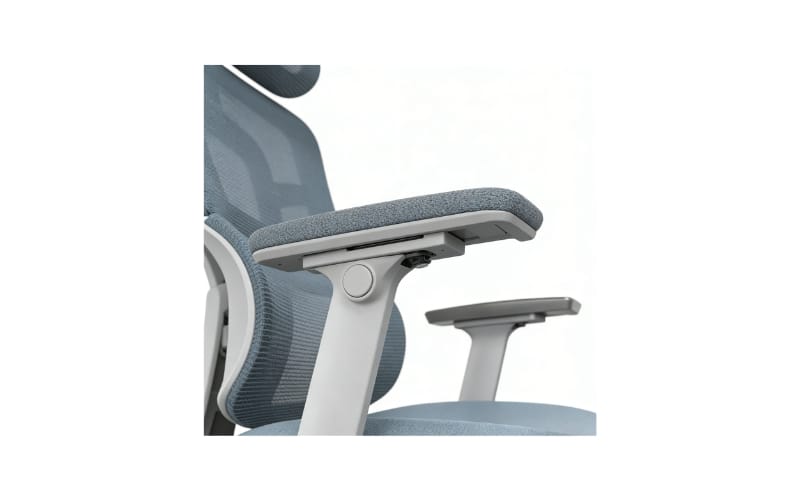
Multi-Directional Armrests
Minutes 5–7: Sit Naturally
Now, settle in. Place your hands on the desk as if you’re about to work. Close your eyes for a moment, then open them and notice:
Any immediate pressure points (tailbone, thighs, shoulder blades)?
Do you feel the lumbar support without thinking about it?
Are your shoulders raised or relaxed?
This is the “silent test.” If you already feel discomfort in the first two minutes of stillness, it won’t improve over eight hours.
Minutes 7–9: Lean Back and Move
Lean back fully. Does the chair move smoothly? If there’s a tilt lock, engage it in a slightly reclined position—does it feel stable?
Shift your weight side to side. A good chair lets you move without feeling like you’ll tip over.
Red flag: Creaking noises, jerky movement, or a feeling of instability.
Minutes 9–11: Task Simulation
Now actually work. If possible, type on a keyboard, use a mouse, or hold a phone to your ear.
Can you keep your wrists straight without the armrests interfering?
Can you easily reach your keyboard without leaning forward?
If you use a laptop, does the chair encourage you to crane your neck down?
Red flag: You find yourself leaning forward or hunching to reach your tools. The chair should support you in a working posture, not force you out of it.
Minutes 11–13: Move Around
Get up. Walk around. Sit down again—but this time, don’t re-adjust everything. Instead:
Slide forward and sit on the edge (like you might during an intense call). Is it still comfortable?
Lean to one side (as if reaching for a file). Does the chair tilt dangerously or stay stable?
Cross your legs (if you do that). Is there enough seat width?
Red flag: The chair feels great only when you’re sitting perfectly still in one position—that’s not how humans actually work.
Minutes 13–15: Final Impressions
Resettle into your preferred posture. After all that movement, does the chair still feel comfortable? Would you look forward to sitting in it tomorrow morning?
Ask yourself:
Did any adjustment feel missing?
Would you trust this chair for an 8-hour day?
If testing multiple chairs, which one made you forget you were sitting?
Also see: Parts of a Chair: Complete Guide to Chair Anatomy
The Quick Evaluation Card
Use this scoring guide if comparing multiple chairs (1 = poor, 5 = excellent):
| Feature | Score (1–5) | Notes |
|---|---|---|
| Seat height range | — | — |
| Seat depth adjustment | — | — |
| Lumbar support fit | — | — |
| Armrest adjustability | — | — |
| Tilt smoothness | — | — |
| Seat comfort (5 min) | — | — |
| Seat comfort (after movement) | — | — |
| Build quality (feel) | — | — |

What to Do If the Chair Fails
If a chair doesn’t meet your needs in the 15-minute test, don’t force it. Move on to another model. Common dealbreakers:
Seat too short or too long: No seat depth adjustment or range doesn’t fit you.
Lumbar support in wrong place: Non-adjustable and hits your sacrum or mid-back.
Armrests that don’t adjust: They’re either too high (shrugging shoulders) or too wide (reaching outward).
Tilt too stiff or too loose: You can’t find a comfortable balance.
Pro tip: If you’re between sizes (e.g., Aeron size B vs. C), test both. Many chairs come in multiple frame sizes—choose based on your height and weight, not just aesthetics.
Frequently Asked Questions about Chair Testing
1. How long should I really sit in a chair before buying?
Ideally, 15–30 minutes for a basic assessment. For a chair you’ll use 8+ hours daily, see if the retailer offers a 30-day home trial. Real comfort reveals itself after hours, not minutes. But the 15-minute test catches obvious mismatches before you commit.
2. Can I test a chair without bringing my own keyboard?
If the showroom has a workstation, great. If not, mimic your typical work posture. Hold your hands as if typing, look at a screen (even a distant one), and notice if your shoulders creep forward. A good chair will help you maintain a neutral posture without fighting it.
Also see: How to Test an Office Chair Before Buying
3. What’s the most common mistake people make when testing chairs?
Not adjusting anything. Most people sit in a chair for 60 seconds as it comes out of the box, decide “this feels fine,” and buy it. But a chair that’s set for someone else’s body will never feel right. Always start by resetting all adjustments to their extremes, then dial in your own settings.
4. How do I test for chronic back issues?
If you have existing back pain, pay extra attention to lumbar support and seat depth. Bring a friend or colleague to watch your posture as you sit—they can tell you if you’re slouching or straining. Don’t be shy about spending extra time; some retailers allow you to bring the chair to a quiet area for a longer sit.
5. Should I test chairs at the end of the day?
Yes, if possible. Your body changes throughout the day—discs compress, muscles fatigue. Testing a chair at 4:00 PM after a long day gives you a better sense of how it will feel when you need support most.
Conclusion
Testing an ergonomic chair in 15 minutes is not about rushing—it’s about being intentional. By following a structured sequence, you’ll evaluate all the critical adjustments, simulate your actual work postures, and catch red flags before they become chronic pain.
Remember: the best chair isn’t the one with the most levers or the highest price tag. It’s the one that, after 15 minutes of testing, makes you forget you’re sitting.
Take your time. Adjust everything. Move around. And don’t settle until you find the chair that supports you—not the other way around.
Ready to find your perfect ergonomic chair? Visit our showroom or browse our collection of fully adjustable seating designed for real-world comfort.