





 Meet&Co
You have an ergonomic chair at the office. It adjusts to your height, supports your lumbar curve, and lets you work comfortably through the afternoon. Then you come home to a dining chair that leaves your back aching within an hour. Or perhaps the reverse is true: you invested in a quality home office setup, but your workplace chair is outdated and unsupportive.
For hybrid workers—those splitting their time between home and office—the furniture mismatch is a real problem. Your body doesn’t care where you’re sitting; it needs consistent support to prevent strain, fatigue, and long-term injury. Yet many hybrid workers find themselves with two very different setups, or worse, one good setup and one that actively works against them.
Here at Meet&Co, we’ll help hybrid workers navigate the challenge of furnishing two workspaces. You’ll learn how to prioritize investments, what features matter most in each environment, and how to create ergonomic consistency across home and office—without breaking the bank.
What is the Hybrid Worker’s Challenge
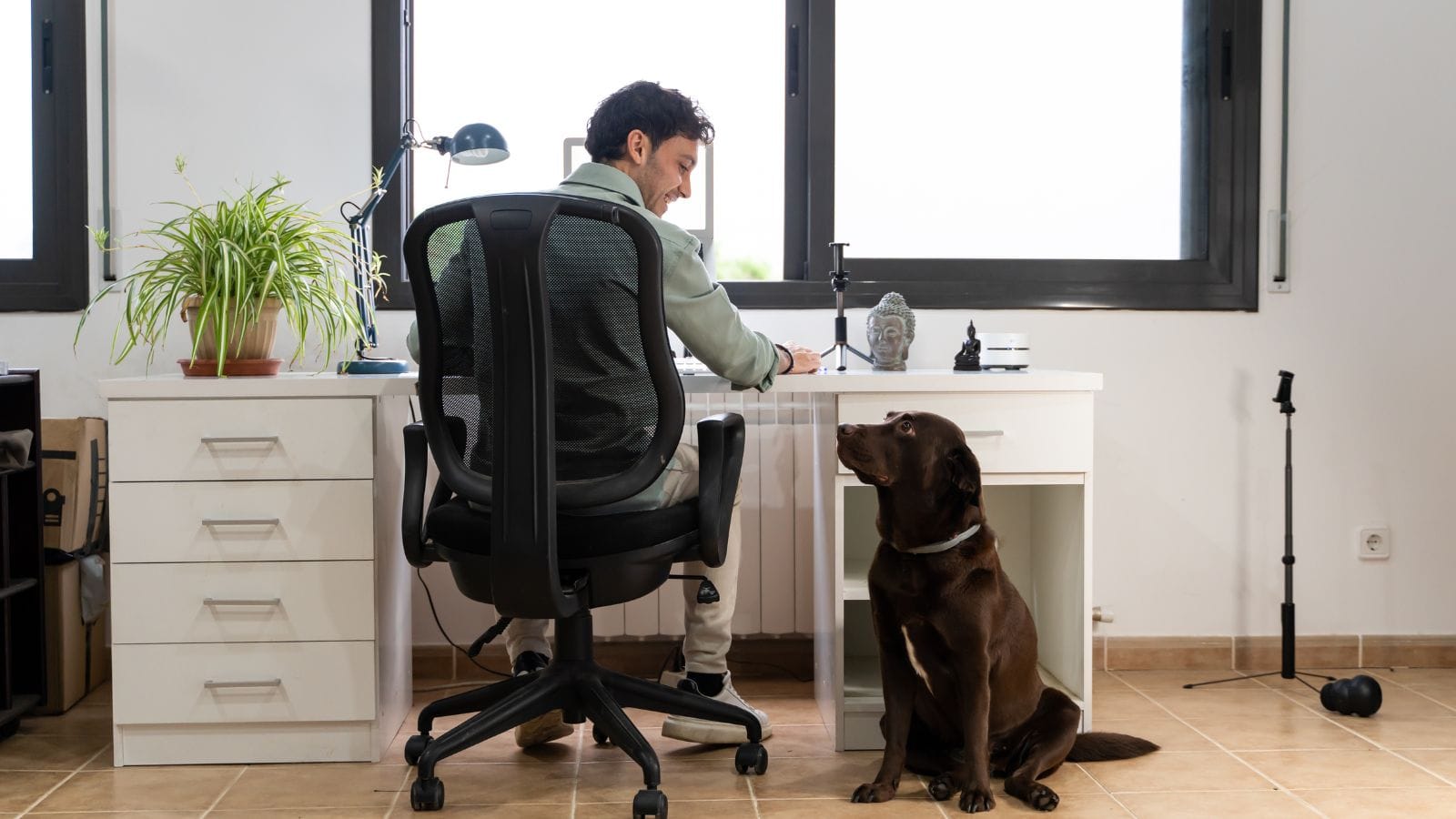
Working from two locations creates unique ergonomic challenges. Understanding them is the first step to solving them.
| Challenge | Why It Matters |
| Inconsistent support | Your body adapts to different postures daily, preventing muscle memory and increasing strain |
| Differing equipment | One setup may have adjustable furniture; the other may be fixed or inadequate |
| Varying work modes | Office days may involve more meetings; home days may involve more focused solo work |
| Budget constraints | Furnishing two full ergonomic setups is expensive |
| Space limitations | Home setups often share space with living areas, limiting furniture choices |
The goal isn’t necessarily identical furniture in both locations—it’s achieving equivalent ergonomic outcomes. Your body should be supported equally well whether you’re at home or in the office.
Top 5 Core Ergonomic Principles for Both Spaces
Before comparing home and office, let’s establish what “good” looks like in any setting. These principles apply regardless of location.
| Principle | What It Means | Why It Matters |
| Neutral posture | Spine aligned, shoulders relaxed, wrists straight | Prevents strain on muscles, joints, and nerves |
| Adjustability | Furniture adapts to your body, not the reverse | Accommodates different body types and positions |
| Support where needed | Lumbar curve supported, thighs fully supported | Distributes weight, reduces pressure points |
| Movement allowed | Ability to shift positions, stand, or recline | Prevents static loading, promotes circulation |
| Screen at eye level | Monitor top at or slightly below eye level | Prevents forward head posture and neck strain |
These principles don’t change based on location. The furniture you choose—whether for home or office—should enable them.
Home Office: The Flexibility Advantage
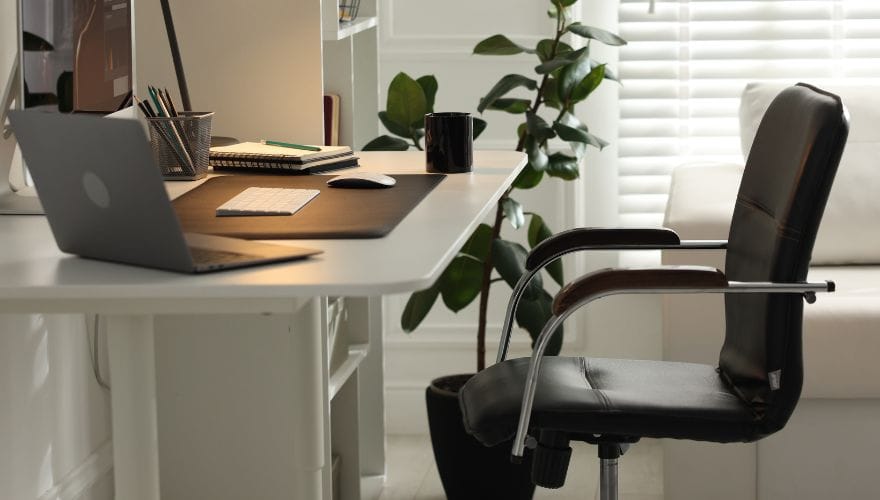
Your home office is yours to customize. You control what furniture you buy, where it goes, and how it’s set up. This freedom is both a blessing and a responsibility.
What Home Offices Do Well
| Advantage | Why It Helps |
| Complete control | You choose every piece of furniture |
| Personal fit | Furniture sized to your body, not a shared pool |
| Privacy | No one else adjusts your chair or desk |
| Flexible scheduling | You can stand, move, or reconfigure as needed |
| Long-term investment | Quality furniture pays off over years |
Common Home Office Gaps
| Gap | Why It Happens | Solution |
| Improvised furniture | Using dining chairs, kitchen tables, or couches | Invest in at least one ergonomic chair |
| Laptop-only setup | Screen too low, keyboard cramped | Add external monitor, keyboard, mouse |
| Poor lighting | Relying on overhead or window light | Add task lighting, position screen to avoid glare |
| Limited adjustability | Fixed-height desk, non-adjustable chair | Choose adjustable pieces; consider sit-stand desk |
| Work-life boundary | Desk in living space, hard to disconnect | Use visual dividers, lighting zones, or dedicated room if possible |
Recommended Home Office Furniture Priorities
If you can only invest in a few key pieces for home, prioritize in this order:
- Ergonomic chair with adjustable seat height, seat depth, and lumbar support
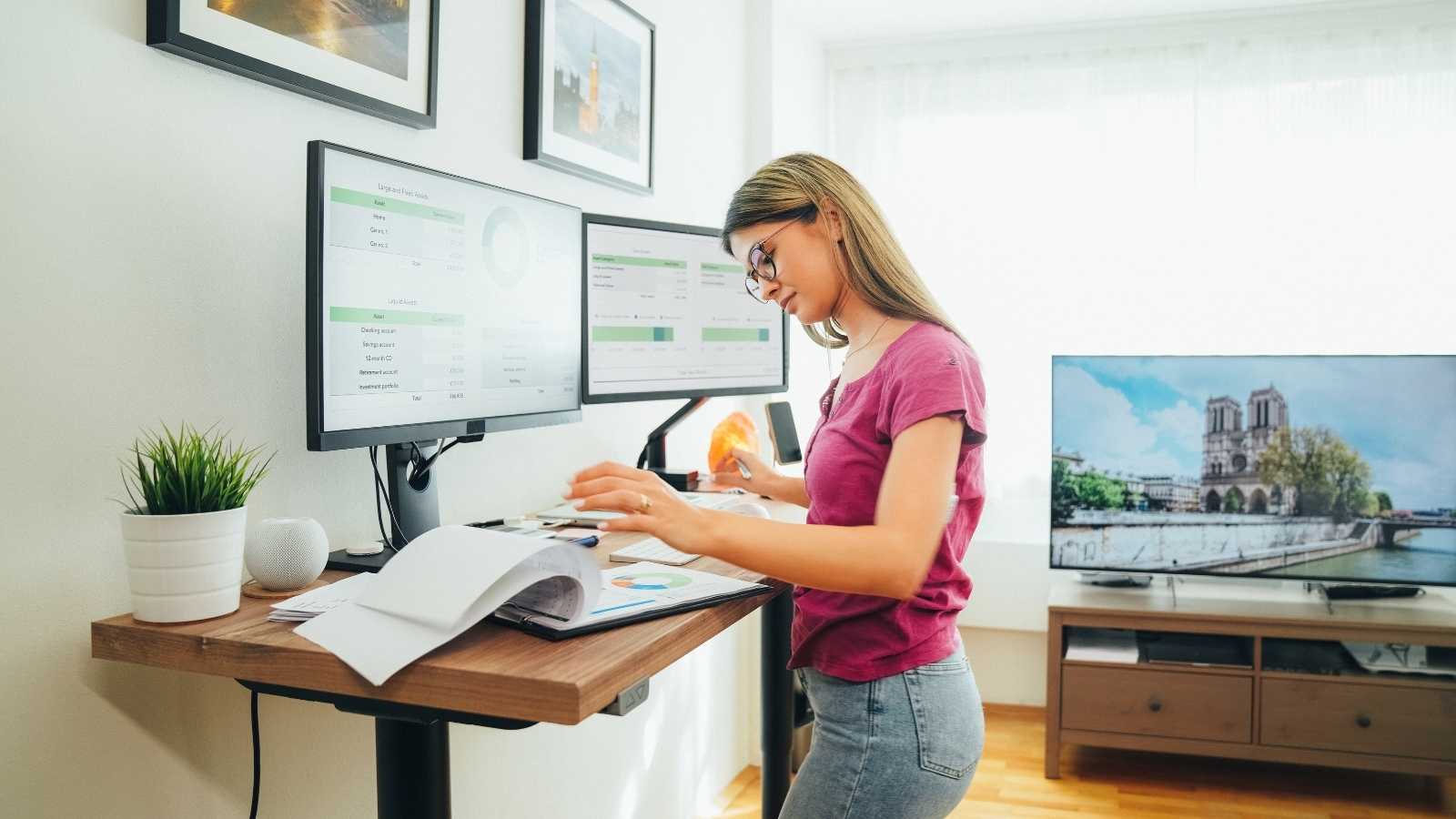
- Adjustable desk (sit-stand preferred) to enable posture changes
- External monitor at proper height (or laptop riser)
- Separate keyboard and mouse for neutral wrist position
- Task lighting to reduce eye strain
Also see: 10 Best Affordable Standing Desks in Your Home Office
Company Office: The Shared Space Reality
Your office workspace is designed by someone else—often with a focus on standardization, durability, and accommodating many users. This can be a strength or a limitation.
What Offices Do Well
| Advantage | Why It Helps |
| Commercial-grade furniture | Built to last, often higher quality than consumer options |
| Adjustability options | Many offices provide chairs with height, lumbar, and arm adjustments |
| Ergonomic expertise | Facilities teams may offer assessments and adjustments |
| Variety of spaces | Meeting rooms, quiet zones, collaboration areas support different work modes |
| No personal cost | Employer typically covers furniture expense |
Common Office Gaps
| Gap | Why It Happens | Solution |
| One-size-fits-all | Chairs and desks sized for “average” user | Request adjustments; ask for alternative sizes if available |
| Fixed setups | Desk height non-adjustable; monitor arms missing | Request sit-stand converter or monitor riser |
| Shared equipment | Chair settings changed by others | Note your settings; reset at start of each day |
| Limited availability | Ergonomic equipment may be in short supply | Advocate for needs; prioritize based on hours at desk |
| Outdated furniture | Older chairs may have worn foam or failing mechanisms | Report issues to facilities; request replacement |
How to Make the Most of Your Office Setup
Even in a standardized office, you can optimize your workspace:
- Use the chair’s adjustments: Most office chairs have more adjustments than people realize. Learn what your chair offers and set it to your body.
- Request a monitor arm: If available, a monitor arm lets you position screens at the correct height and distance.
- Ask for a sit-stand converter: Many offices now provide desktop converters for employees who prefer standing.
- Use a footrest: If your chair’s minimum height leaves your feet dangling, a footrest is essential—often available from facilities.
- Personalize within limits: Bring your own ergonomic mouse, keyboard, or seat cushion if needed.
Comparison: Home vs. Office Furniture Needs
| Factor | Home Office | Company Office |
| Control | Complete control over purchases | Limited to available equipment |
| Cost | Personal expense; can be significant | Employer-funded |
| Quality options | Consumer-grade to premium | Commercial-grade, often high durability |
| Adjustability | Can choose highly adjustable pieces | Varies by office; may be limited |
| Privacy | Complete privacy | Shared space, potential distractions |
| Flexibility | Can rearrange anytime | Limited to assigned workstation |
| Long-term fit | Furniture sized to you | Furniture sized to “average” user |
| Maintenance | Your responsibility | Facilities handles repairs |
Five Strategies for Ergonomic Consistency
1. Prioritize One Location (Usually Home)
If budget is tight, focus on creating one fully ergonomic setup—typically at home, since you control it entirely. At the office, work with what’s available and advocate for adjustments.
2. Document Your Settings
Know your ideal chair height, seat depth, armrest position, and monitor height. At the office, reset your chair to these settings at the start of each day. Consistency across locations reduces postural adaptation.
3. Invest in Portable Ergonomic Tools
Some ergonomic solutions travel with you:
| Tool | Why It Helps |
| Laptop riser | Raises screen to eye level anywhere |
| External keyboard and mouse | Maintains neutral wrist position |
| Seat cushion | Adds support and pressure relief to any chair |
| Footrest | Portable foot support for chairs that are too tall |
| Monitor arm (clip-on) | Portable monitor mounting for laptops |
These tools allow you to create ergonomic setups in both locations without buying duplicate furniture.
4. Advocate for Office Improvements
Many employers are willing to provide ergonomic equipment when employees articulate their needs. Approach facilities or HR with specific requests:
- “I need a chair with adjustable seat depth and lumbar support.”
- “My desk is too high for proper typing posture. Can I get a sit-stand converter?”
- “My monitor is too low. Can I have a monitor arm or riser?”
Document any discomfort or strain you’re experiencing; this strengthens your case.
5. Build Movement into Both Workdays
Furniture alone isn’t enough. Regardless of location, build movement habits:
- Stand up every 30–45 minutes
- Use a sit-stand desk (if available) to alternate postures
- Take walking meetings when possible
- Stretch during breaks
Movement compensates for less-than-perfect furniture in either location.
Quick Comparison: Furniture Types for Hybrid Workers
| Furniture Type | Home Office Priority | Office Priority | Notes |
| Ergonomic chair | High | High | Invest at home; adjust office chair to fit |
| Sit-stand desk | High (if budget allows) | Medium | Home: full desk; office: converter |
| Monitor arm/riser | High | High | Essential for proper screen height |
| External keyboard/mouse | High | Medium | Bring your own if office lacks |
| Footrest | Medium | High if chair too tall | Portable option works for both |
| Seat cushion | Medium | High if office chair uncomfortable | Portable solution |
| Task lighting | High | Low (office typically has overhead) | Home often needs dedicated lighting |
Budgeting for Two Spaces
Furnishing two ergonomic workspaces can be expensive. Here’s a phased approach.
Phase 1: Essentials (Home)
- Ergonomic chair ($300–800)
- Laptop riser ($30–80)
- External keyboard and mouse ($50–150)
- Seat cushion (optional, $30–60)
Phase 2: Mobility
- Portable footrest ($20–40)
- Second set of keyboard/mouse for office ($50–150)
- Monitor arm (clip-on) ($50–100)
Phase 3: Upgrades
- Sit-stand desk at home ($400–1,200)
- Sit-stand converter at office ($200–500)
- Second monitor for home ($150–300)
- Quality chair at office (if employer doesn’t provide)
Phase 4: Premium
- Full sit-stand desk at home with memory settings
- Premium ergonomic chair at both locations
- Dual monitor setup at both locations
The key is prioritizing based on where you spend the most time and where the greatest ergonomic gaps exist.
Real-World Example: A Hybrid Worker’s Approach
Sarah splits her week: three days at the office, two days at home. Here’s how she manages ergonomics across both spaces.
Home office:
- Sit-stand desk (purchased)
- Premium ergonomic chair (purchased)
- Dual monitors on arms
- Task lighting
Office:
- Standard adjustable chair (provided) – she documents her settings and adjusts daily
- Sit-stand converter (requested and provided)
- Single monitor on arm (provided)
- She brings her own keyboard, mouse, and laptop riser in a small bag
Portable kit:
- Laptop riser
- Wireless keyboard and mouse
- Small footrest
- Seat cushion (kept at office)
This approach balances investment with practicality. The home setup is fully ergonomic; the office setup is supplemented with portable tools that ensure consistent support.
FAQ
1. Should I buy the same chair for home and office?
Not necessarily. Your home chair should fit your body perfectly. The office chair should be adjustable enough to fit you. If your office chair doesn’t adjust adequately, request a replacement or bring a seat cushion.
2. How do I convince my employer to provide ergonomic furniture?
Document any discomfort or strain. Approach HR or facilities with specific requests, referencing your work hours and specific needs. Many employers have ergonomic assessment programs—ask if one is available.
3. Is a standing desk worth it for hybrid workers?
If you split time between locations, a standing desk at home is a great investment. At the office, a sit-stand converter is a practical alternative if a full desk isn’t available.
4. What’s the most important ergonomic investment for hybrid workers?
A quality ergonomic chair at your primary workspace (usually home). It provides the foundation for all other ergonomic adjustments.
5. How do I maintain ergonomic consistency when traveling?
Create a portable ergonomic kit: laptop riser, compact keyboard and mouse, small footrest. These tools let you create a supportive setup in hotels, co-working spaces, or temporary offices.
6. Can I use the same ergonomic principles in a co-working space?
Yes. Bring your portable tools. Choose a seat that allows you to position yourself relative to the table height. If the space offers adjustable chairs, use them.
Conclusion
Hybrid workers face a unique challenge: maintaining ergonomic health across two workspaces. The goal isn’t identical furniture in both locations—it’s achieving equivalent support wherever you work.
At home, invest in furniture that fits your body and supports neutral posture. At the office, advocate for adjustments, use available resources, and supplement with portable ergonomic tools.
Remember the core principles:
- Support your spine: Adjustable lumbar, proper seat depth
- Keep your screen at eye level: Monitor arms or risers
- Allow movement: Sit-stand capability, frequent position changes
- Document your settings: Consistency across locations
With thoughtful planning, you can create ergonomic workspaces in both locations—protecting your body and your productivity no matter where your work takes you.
_2.webp)